To extend the life of your laptop, it’s essential to adopt a few key practices that can significantly impact its longevity. By implementing simple strategies like regular maintenance, proper storage, and optimizing performance, you can ensure that your device remains functional and efficient for an extended period. These steps not only benefit the lifespan of your laptop but also contribute to its overall performance and user experience. So, what are some of the effective ways to safeguard your laptop and get the most out of its capabilities?
Importance of Regular Maintenance
To keep your laptop running smoothly and extend its lifespan, regular maintenance is crucial. By taking simple steps, you can prevent issues that may lead to costly repairs or even the need for a new device. Start by keeping your laptop clean. Dust and debris can clog vents and cause overheating, so using a soft cloth to wipe down the exterior and keyboard can go a long way.
Another essential aspect of maintenance is updating your software and operating system. Manufacturers release updates to improve performance, fix bugs, and enhance security. By staying up to date, you ensure that your laptop functions optimally and remains protected from potential threats.
Additionally, pay attention to how you handle your laptop. Avoid placing heavy objects on top of it, as this can damage the screen or internal components. When transporting your laptop, use a protective case to prevent scratches and dents. These simple practices can significantly extend the life of your device and keep it running smoothly for years to come.
Best Practices for Storage
For optimal storage practices, consider utilizing a cool, dry environment to safeguard your laptop from potential damage. Storing your laptop in a place with excessive heat or humidity can lead to corrosion, battery degradation, and overall reduced performance.
When not in use, it’s recommended to shut down your laptop and store it in a protective case or sleeve to prevent dust accumulation and physical damage. Avoid placing heavy objects on top of your laptop, as this can cause pressure on the screen or keyboard, leading to long-term issues.
Additionally, it’s advisable to keep your laptop away from direct sunlight to prevent overheating and potential screen damage. If you need to store your laptop for an extended period, ensure it’s adequately charged to around 50% and then power it off to maintain battery health.
Tips for Optimal Performance
Maximize your laptop’s efficiency by regularly updating software and removing unnecessary programs or files. Keeping your laptop running smoothly is crucial for optimal performance. Start by updating your operating system and software regularly. Updates often include improvements that can enhance speed and security. Additionally, uninstall programs you no longer use to free up valuable storage space and reduce system strain.
Another tip for optimal performance is to manage your startup programs. Having too many applications launch at startup can slow down your laptop’s boot time. Disable unnecessary startup programs to help your laptop start up more quickly. It’s also beneficial to restart your laptop periodically to refresh its system and clear out any temporary files that may be slowing it down.
Furthermore, consider upgrading your hardware if your laptop is struggling to keep up with your demands. Upgrading components like RAM or switching to a solid-state drive can greatly improve performance. By following these tips, you can ensure that your laptop operates at its best for years to come.
Ways to Protect Your Laptop
Consider implementing security measures to safeguard your laptop from potential threats and unauthorized access. Start by setting up a strong password or using biometric authentication methods like fingerprint recognition.
Keep your operating system and software up to date to patch any security vulnerabilities. Utilize a reliable antivirus program to protect against malware, viruses, and other online threats.
Be cautious when connecting to public Wi-Fi networks, as they can pose risks to your data security. Consider using a Virtual Private Network (VPN) for added protection when browsing on unsecured networks.
Avoid clicking on suspicious links or downloading attachments from unknown sources to prevent phishing attacks. Enable a firewall to monitor and control incoming and outgoing network traffic.
Trending Products

HP Essential 15.6″ Touchscreen Laptop with 1-Year Office 365, 16GB RAM, 1TB Cloud and 128GB SSD, Intel Core, Bluetooth, Wi-Fi, Natural Silver, Windows 11, no Mouse


HP 2027 Everyday Laptop, Intel CPU, 128GB Storage, Copilot AI, Office 365
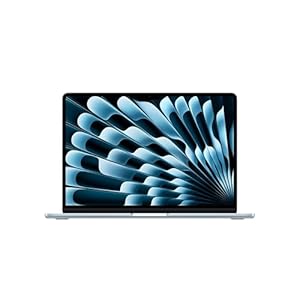
Apple 2026 MacBook Air 13-inch Laptop with M5 chip: Built for AI, 13.6-inch Liquid Retina Display, 16GB Unified Memory, 1TB SSD, 12MP Center Stage Camera, Touch ID, Wi-Fi 7; Sky Blue


HP 15.6″ Laptop, Intel N150, 128GB + 1TB Cloud Storage, Office 365


15.6″ FHD IPS Student Laptop, AI Assistant Included, Office 365
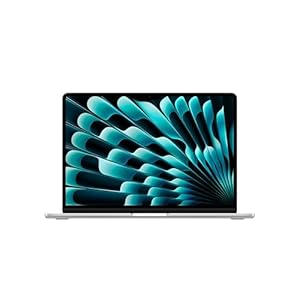
Apple 2026 MacBook Air 13-inch Laptop with M5 chip: Built for AI, 13.6-inch Liquid Retina Display, 16GB Unified Memory, 1TB SSD, 12MP Center Stage Camera, Touch ID, Wi-Fi 7; Silver